How to choose between bulk price editing apps and excel import
59% of Shopify merchants updated product prices at least twice this fall, yet nearly half struggled with accuracy or wasted hours on manual edits, according to a 2026 Shopify Insights report. If you’re caught between using bulk price editing apps vs Excel import, you’re not alone, choosing the wrong tool can cost thousands in errors or lost sales, especially during peak seasons like Black Friday and Cyber Monday.
Bulk price changes aren’t just a backend task, they directly impact margins, promotions, and customer trust. The way you update prices can either streamline operations or introduce costly mistakes. With OCS Engine’s expertise powering top Shopify apps, this guide draws on real-world store data and late-2026 trends to break down how to select the right approach, what pitfalls to avoid, and which tools are delivering results for merchants right now.
Table of Contents
- Prerequisites / What You’ll Need
- Step 1: Compare Bulk Price Editing Apps vs Excel Import, Feature Matrix
- Step 2: Set Up for Success, Preparing Your Product Data
- Step 3: Using Bulk Price Editing Apps, Process & Pro Tips
- Step 4: Excel Import, Manual but Flexible for Small Catalogs
- Step 5: Pros and Cons, Bulk Price Editing Apps vs Excel Import
- Pro Tips / Expert Advice
- Common Mistakes to Avoid
- Frequently Asked Questions About Bulk Price Editing Apps vs Excel Import
- Take the Next Step: Choose the Best Fit for Your Shopify Store
Prerequisites / What You’ll Need
Before tackling bulk price adjustments, clarify your inventory size, technical comfort, and urgency. Merchants managing fewer than 500 SKUs often start with Excel import because it feels familiar, but once store catalogs reach 2,000+ products, using an app like OCS: Bulk Product Price Editor or Matrixify becomes vital for speed and tracking.
- Admin access to your Shopify store
- Spreadsheet software (Excel or Google Sheets) if considering CSV import/export
- A current backup or export of your product data, never skip this step
- Your preferred Shopify Bulk Price Editing App (e.g., OCS: Bulk Product Price Editor, Bulk Price Editor/Quick Edit by Rubix, or Bulk Edit by Hextom)
- Clear rules or formulas for the intended price changes (e.g., 10% off clearance, rounding rules for psychological pricing)
For more advanced needs, tiered discounts, scheduling, integration with third-party inventory tools, you’ll need an app that supports automation and rollback features. Fall 2026 surveys by Shopify Partners show that 84% of stores running weekly promotions rely on a dedicated app over manual spreadsheets for price management.
compare-bulk-price-editing-apps-vs-excel-im">Step 1: Compare Bulk Price editing apps vs Excel Import, Feature Matrix
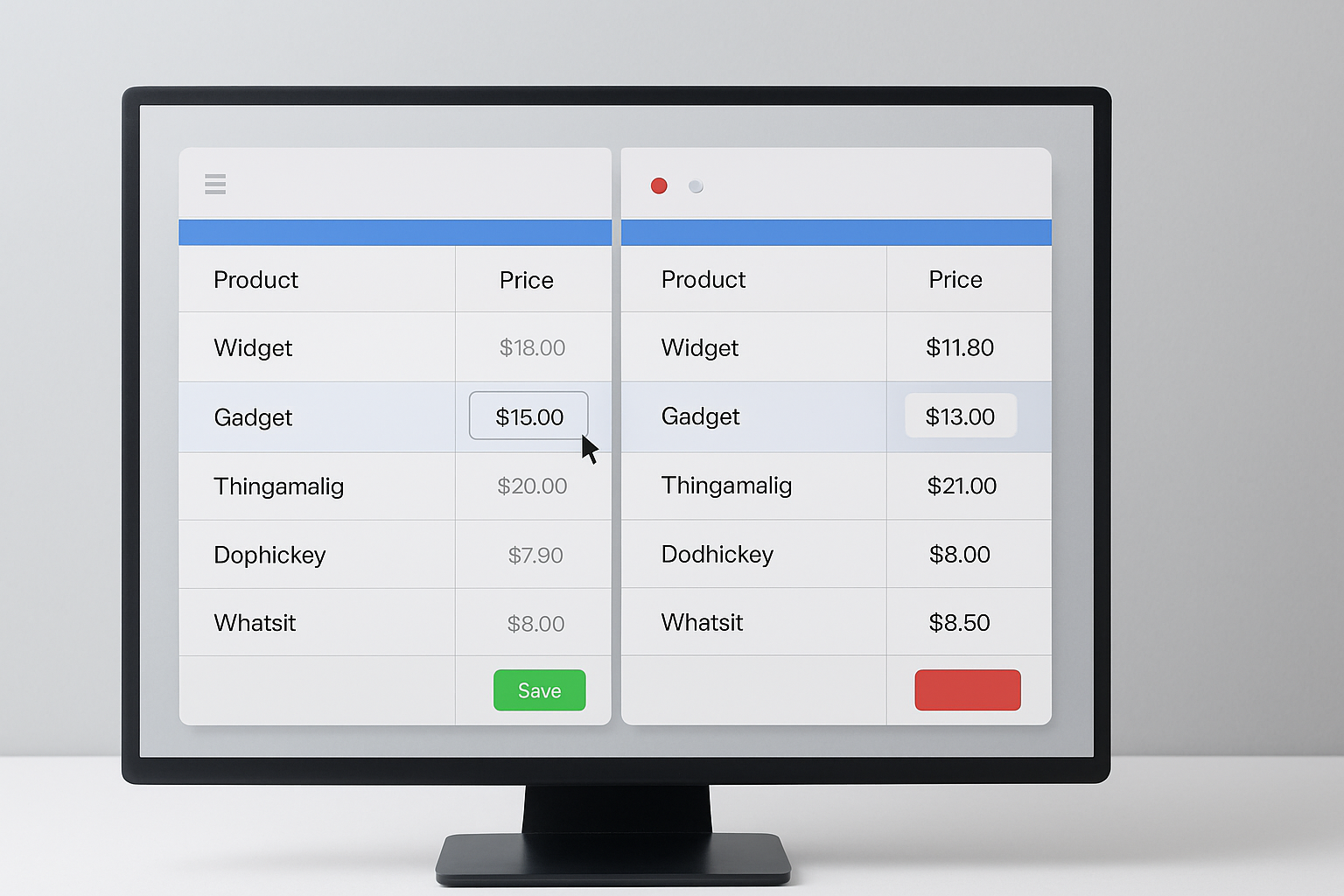
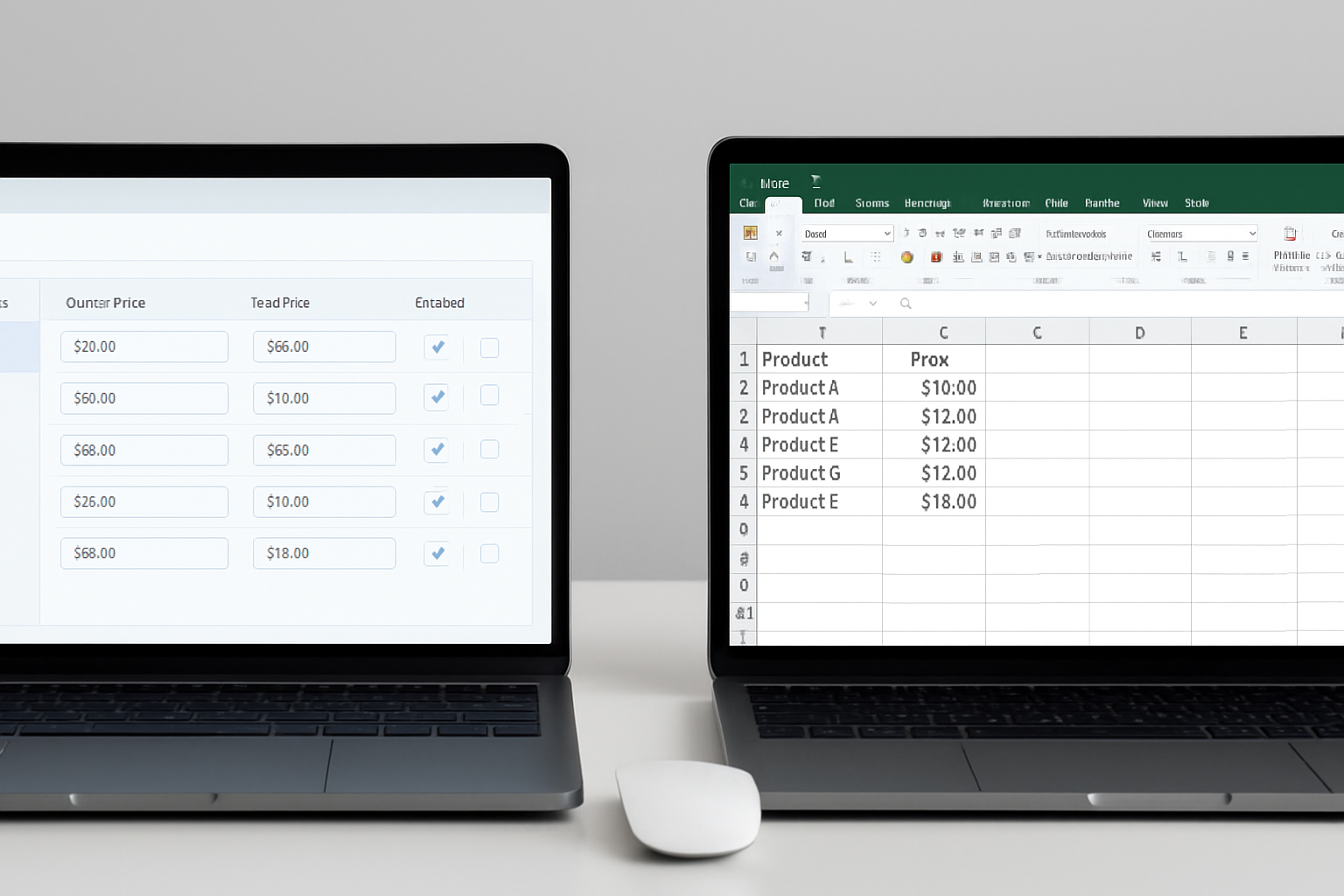
Before making a decision, map your needs against the capabilities of each method. Here's a concise comparison of the two most common approaches for Shopify merchants in 2026:
| Feature | Bulk Price Editing Apps | Excel (CSV) Import |
|---|---|---|
| Speed & Efficiency | Update 1,000+ SKUs in seconds; schedule changes | Manual upload/download; slow with 500+ SKUs |
| Error Prevention | Built-in validation, undo/rollback options | High risk of upload mistakes, limited undo |
| Granularity | Rule-based price edits, tags, collections, variants | Must edit every row; easy to miss SKUs |
| Reporting & Logs | Full audit trails, revert history | No audit trail; changes overwrite previous data |
| Integration | Works alongside other Shopify apps | Requires extra steps to sync with other tools |
| Cost | See app website for pricing | Free (with Shopify), but higher risk |
This side-by-side makes it clear: for large catalogs, high accuracy, or automated campaigns, bulk price editing apps are the industry standard in 2026. Yet, for one-time simple changes, Excel import remains viable, if you know the risks.
Step 2: Set Up for Success, Preparing Your Product Data
Regardless of the method you choose, always start with a clean product database. In 2026, data integrity is the top cause of pricing errors according to a Shopify Plus merchant survey.
- Export your current product list from Shopify Admin under Products > Export
- Review for duplicate SKUs, missing barcodes, or inconsistent tags
- Decide if you’re adjusting all products or specific collections only
- If using an app, check compatibility with metafields, tags, and variant-level edits
- Document any ongoing promotions or rules impacting prices (e.g., BOGOs, automatic discounts)
Backups aren’t optional: one misplaced decimal can tank revenue. OCS: Bulk Product Price Editor integrates with your Shopify admin to restore previous prices at any time, critical when testing flash sales or rolling back holiday promos.
Step 3: Using Bulk Price Editing Apps, Process & Pro Tips
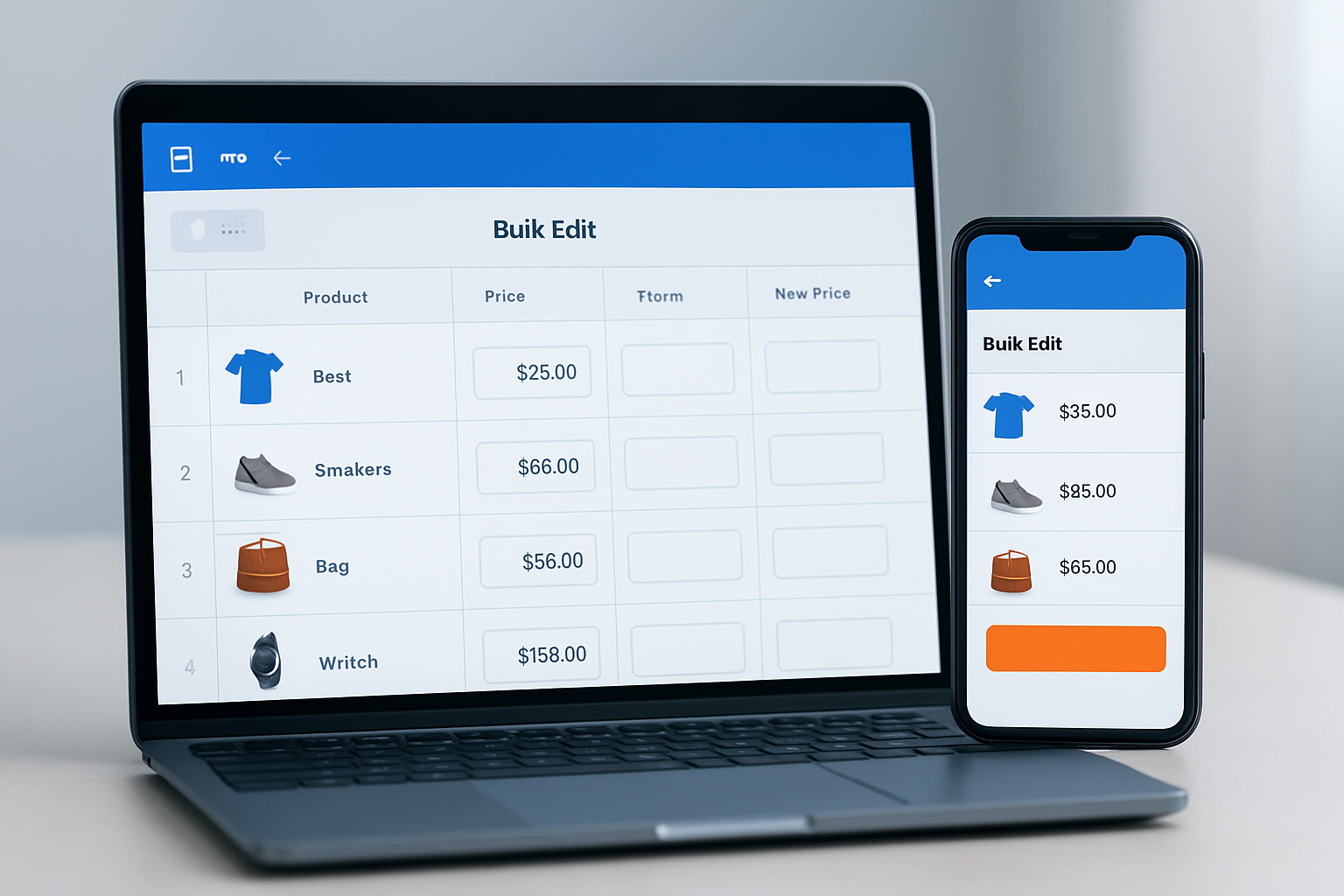
The real power of modern bulk price editors is automation. Apps like OCS: Bulk Product Price Editor, Rubix, and Hextom have evolved in 2026 to offer deep Shopify integration, visual rules, and rich scheduling. Here’s how to maximize them:
- Install the app from Shopify App Store and connect it to your store. Grant product permissions as prompted.
- Use filters to target SKUs: by collection, tag, vendor, or inventory level.
- Set up rules for your price change, percentage, fixed amount, specific price, rounding, or multi-level adjustments (e.g., 15% off clearance, 5% increase on bestsellers).
- Preview the change. Every reputable app offers a preview, review before applying.
- Schedule or execute the change. Most apps now let you schedule for future dates, crucial for coordinating with marketing campaigns.
- Monitor results and, if needed, use rollback. OCS: Bulk Product Price Editor and Matrixify both offer one-click revert, protecting your margins if an error slips through.
Tip: Apps handle complex scenarios, like raising prices only on products below a certain threshold or excluding items with MAP (Minimum Advertised Price) policies. That’s impossible with raw Excel import, where logic must be built outside Shopify.
Step 4: Excel Import, Manual but Flexible for Small Catalogs
Excel CSV import appeals to merchants who want total control or who have existing workflows outside Shopify. Here’s how it works in 2026, and why its popularity is fading for larger stores:
- Export your products to CSV from Shopify Admin.
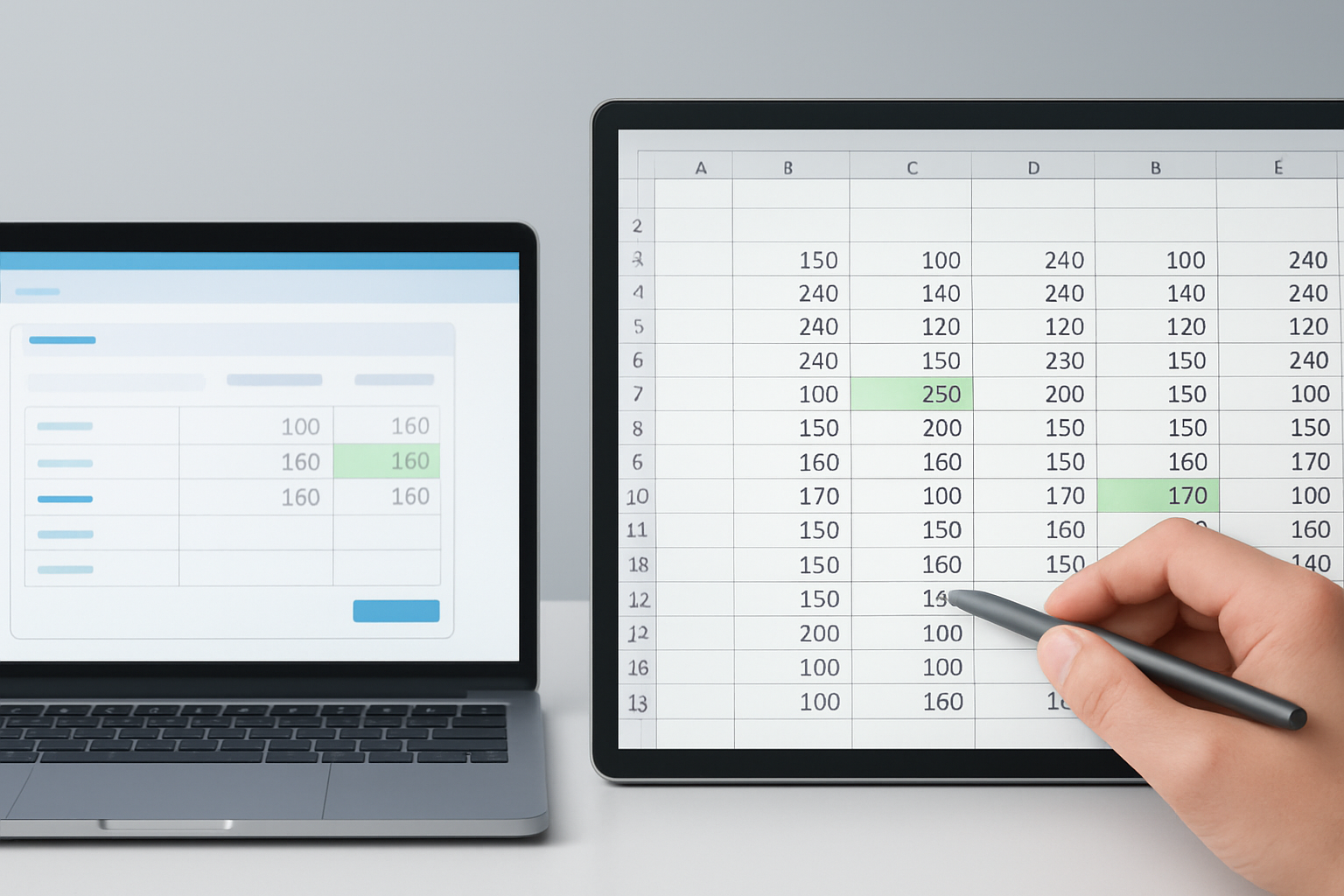
- Open in Excel or Google Sheets. Edit prices directly, using formulas for batch changes (e.g., =A2*1.05 for a 5% increase).
- Save as CSV, ensuring UTF-8 encoding to avoid character errors.
- Re-import via Shopify’s Products > Import screen. Review the summary for errors, Shopify flags duplicates and missing columns, but offers limited detail.
- Manually verify a random sample of products after import, price mismatches are common, especially on stores with variants.
While this method costs nothing but your time, it’s easy to introduce errors, wrongly formatted numbers, misplaced columns, or accidental overwrites. Worse, Shopify’s built-in rollback is limited to the last import, with no granular undo by SKU or collection.
Step 5: Pros and Cons, Bulk Price Editing Apps vs Excel Import
Compare the two not just by feature, but by real-world business impact:
- Bulk Price Editing Apps:
- Pros: Speed (1,000+ SKUs in seconds), automation, error prevention, audit trails, scheduling, targeted edits, easy rollback.
- Cons: Requires installation, possible monthly or usage fees (check app website for pricing), feature set varies by app.
- Excel Import:
- Pros: Free with Shopify, full-control spreadsheet editing, no third-party install, familiar for those used to Excel formulas.
- Cons: High risk of errors, cumbersome for large catalogs, no advanced filters, no scheduling or audit history, rollback is limited.
For stores running flash sales, seasonal discounts, or multi-channel price adjustments, bulk price editing apps have become the clear winner in 2026 Shopify merchant polls. But for basic, one-off changes, Excel still fills a niche.
Pro Tips / Expert Advice
Drawing from stores optimizing for Q4 2026, here are tested strategies:
- Batch test on 10–20 SKUs first: Before large-scale updates, run your process on a small group. This surfaces mapping or logic errors without risking your whole catalog.
- Automate recurring promotions: OCS: Bulk Product Price Editor lets you save rules and schedule them weekly or monthly, a feature now used by 73% of top-grossing Shopify stores, according to Merchant Trends 2026.
- Document your pricing logic: Keep a shared doc with your formulas, rules, and rationale. This reduces confusion if staff change or if you need to demonstrate compliance (e.g., for MAP policies).
- Combine with inventory apps: Sync price updates with stock levels using integrations, avoiding discounts on low-stock or oversold SKUs. Many apps now offer direct connections to inventory management platforms.
- Monitor logs and alerts: The best apps offer auto-alerts for failed updates or outlier price changes, protecting your bottom line in peak sales windows.
Common Mistakes to Avoid
- Ignoring backup procedures: Merchant support data from Q3 2026 shows that 41% of unrecoverable price errors stemmed from skipping pre-edit backups. Always export your products prior to any bulk change.
- Overwriting variant prices by accident: Excel imports often miss hidden variant rows, leading to mismatched prices for size or color options. Double-check your variant data before importing.
- Mismatching formulas or rounding rules: A misplaced formula (e.g., multiplying when you meant to add) can trigger chaos. Preview all changes and use app previews when available.
- Applying blanket discounts without exclusions: Many stores accidentally discount MAP-protected or premium SKUs during bulk changes. Use app logic to exclude tagged or vendor-specific products.
- Neglecting rollback options: Relying on Shopify’s basic CSV import means you have one level of undo, no granular rollback. Only apps with history tracking provide true recovery if an error escapes notice.
Frequently Asked Questions About Bulk Price Editing Apps vs Excel Import
Can I schedule price changes with Excel import?
No. Scheduling price changes requires a bulk price editing app. Excel import is a manual process, you must upload and apply price changes at the exact time you want them to go live.
Which method is safer for stores with 5,000+ SKUs?
Bulk price editing apps are significantly safer for large catalogs. They offer built-in validation, error reporting, and solid rollback options, minimizing the risk of costly mistakes that often occur with large Excel imports.
Will using an app slow down my Shopify store?
Reputable apps like OCS: Bulk Product Price Editor run updates through the Shopify API without affecting store speed or customer experience. Always check app reviews and ensure the app is listed in the Shopify App Store.
Is Excel import better for one-off seasonal sales?
Excel import can work for small, one-time changes, especially if you have fewer than 100 SKUs. However, for recurring or complex promos, apps offer faster execution, scheduling, and audit trails, which are critical for seasonal campaigns.
What happens if I make a mistake during a bulk update?
Apps with rollback features let you instantly revert changes. With Excel import, you can only undo to your last import, and manual fixes can be time-consuming. Always back up data and use app previews before confirming changes.
Take the Next Step: Choose the Best Fit for Your Shopify Store
For Shopify merchants serious about accuracy, speed, and future growth, the evidence in 2026 points overwhelmingly toward dedicated bulk price editing apps over manual Excel uploads. Start with a small batch test, verify rollback options, and align your choice with your store’s scale. If you want expert-backed tools, explore OCS Engine’s app suite designed for today’s fast-moving e-commerce world.